
MapPlace 2 sample exercises
Exercise 3: Tenure research
You are getting closer to your goal of finding a prospect to be staked or optioned. After reviewing the MINFILE summaries and assessment reports, you recognize mineral occurrences that could match what your company is looking for.
Now you need to view these prospects in relation to land tenure. From that, you hope to outline an area for your company to pursue.
Step 1: Zoom in to the Kemess South (094E 094) occurrence again and set the zoom level to about 1:250K.
a) Use MINFILE Search to find and zoom to the occurrence.

b) Set the scale using the Map Window Scale Box.

Step 2: View the current Mineral tenure.
In the Legend pane, within the Mineral Titles folder, turn on the MTO - Mineral Titles layer.
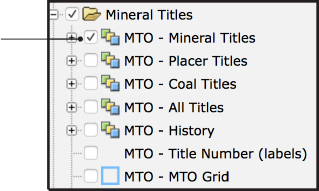
 The MTO (Mineral Titles Online) databases are managed by the Mineral Titles Branch who administer the legislation governing mineral, placer mineral, and coal rights in the province.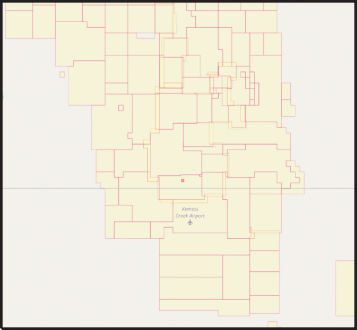
Step 3: At first glance it looks like most of the interesting ground is already covered by active tenure. To confirm this, add the MINFILE occurrences to the map.
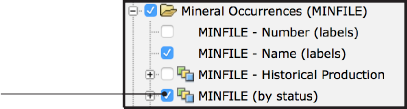
In the Legend pane, turn on the MINFILE (by status)layer (under Mineral Inventory/Mineral Occurrences (MINFILE).

Step 4: It looks like one developed prospect to the northwest of Kemess South might be on open ground.
Hover over the prospect to get its name from the maptip.
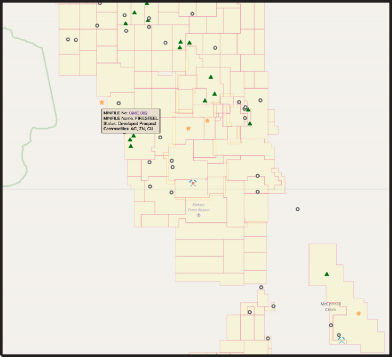
 What is the name of the occurrence?
Step 5: Get more details on this occurrence.
Within the maptip click the MINFILE number (094E 002) to view the MINFILE record summary.
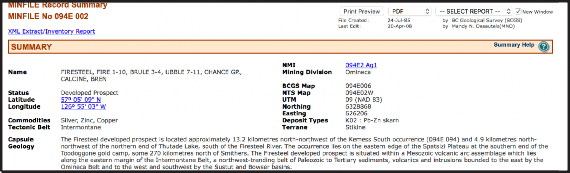
What deposit type has been assigned to this occurrence in the MINFILE database?Because your company is looking for porphyry copper deposits and this prospect is a Pb-Zn skarn you quickly dismiss the occurrence and continue your research into the active mineral tenure.
Step 6: Establish if any of the current claims might come due within the next 6 months.
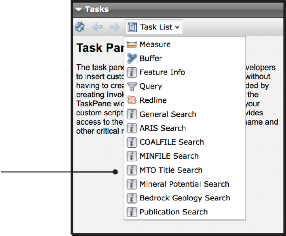
a) In the Tasks pane, under Task List click MTO Title Search.
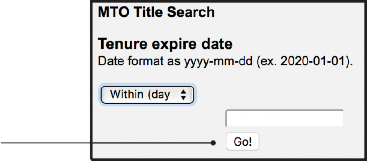
b) Under Tenure expire date query, change date to within (days) and enter 180 in the text box then click Go!
You should see the claims highlighted in red
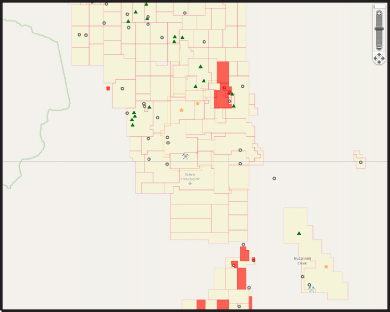
How many claims are coming due in the next 6 months in this area?This highlights, in red, the claims with due dates in the next 180 days in the map window. None of the claims highlighted have occurrences above the showing level so, considering the possibility of an option agreement, you turn your attention to the two developed prospects north of Kemess South.
Step 7: Zoom in to view the tenure containing the Kemess North and Kemess East occurrences.
a) In the toolbar click the Zoom Rectangle button.

b) Draw the zoom rectangle by left clicking in the map window just outside the top left corner of the claims and dragging the pointer (while holding the left button down) to a point outside the lower right corner of the claims. Release the button to complete the zoom.
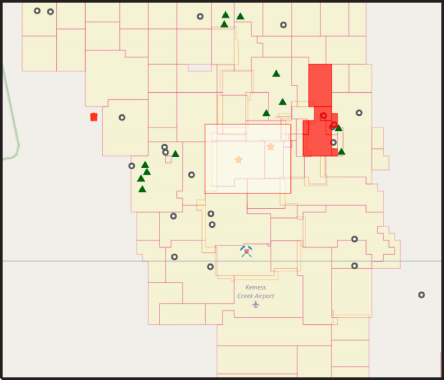
Step 8: Display the MINFILE name labels and view tenure details on the MTO website for both of these claims.
a) Turn on the MINFILE - Name (labels) layer.
b) For the claims that contain the Kemess North and Kemess East showings, view the maptip and click the Details on this MTO claim link.
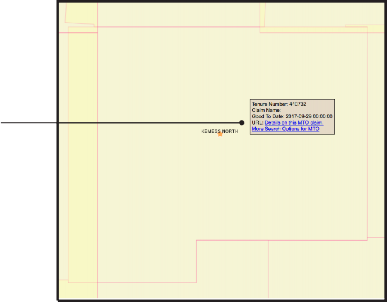
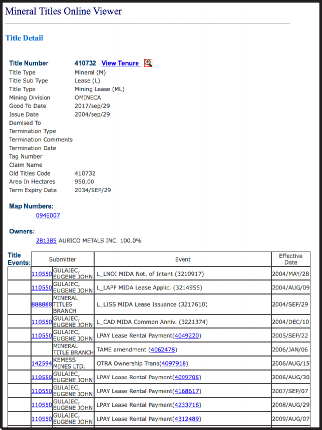
Who currently owns the Kemess North lease?The maptips and MTO site indicate that the Kemess North occurrence is on a lease that expires in 2034 and that the Kemess East occurrence is on a claim that is in good standing until 2026.
You decide to recommend that your company get in touch with the tenure owner to discuss the possibility of an option agreement. Save an outline of the area covered by these two claims to use in the data package you will present to the CEO.
Step 9: Create, style, and save an outline of the property.
a) Click the Redline button in the toolbar (the Manage Redline tool will appear in the Tasks pane).
b) Under Create New Redline deselect Point and Line.
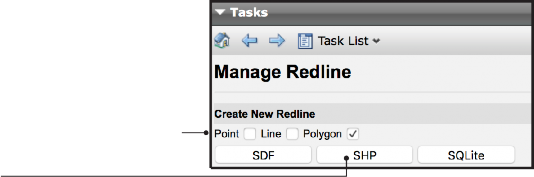
c) Click the SHP button.
d) Under Add Redline click on the Polygon button. 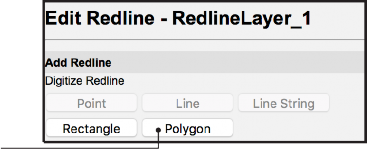
e) Draw a polygon by left clicking on the top left corner of the claim containing the Kemess North occurrence then delineate the claim block by left clicking on each corner.
Double click on the last corner to complete the drawing.
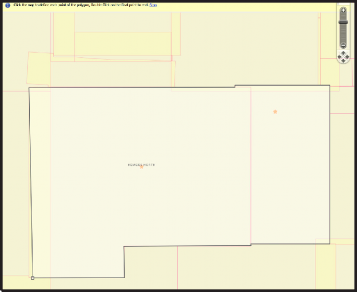
f) To label the polygon enter ‘Kemess North and East’ in the Modify Redline text box and click the Update Text button.
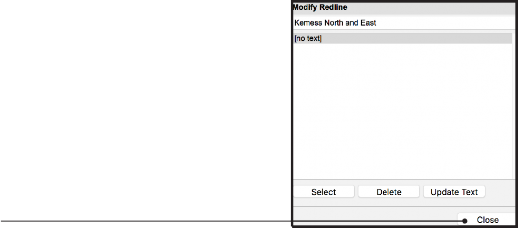
g) Click the Close button.
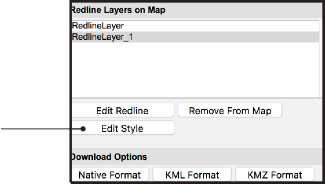
h) Edit the style of the polygon: click the Edit Style button.
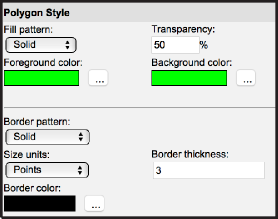
i) Under Polygon Style, change Transparency to 50% and Border Thickness to 3. Click Ok.
j) To export your outline as a shapefile click the Native Format button under Download Options. The shapefile will download to your browser’s default download location in a zip file called RedlineLayer.

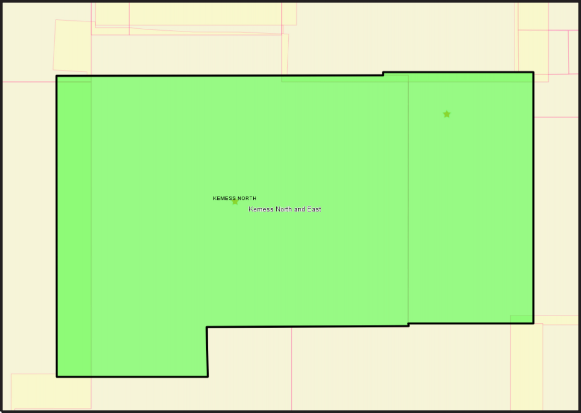
In this exercise, you used MapPlace 2 to view MTO tenure data along with MINFILE occurrences. Using MINFILE searches you determined that none of the prospects that might interest your company are on open ground or on ground that will be open in the next 6 months. You then used direct links to the MTO Title Detail pages to get more information on the claims you think your company should negotiate an option agreement on. Using the Redline tool you created and saved an outline of the area you’re interested in.
You have now selected a specific area for your company to negotiate an agreement on and are ready to prepare a presentation to the CEO.
Datasets used in this exercise:
• MINFILE
• MTO Tenure database
Tools used in this exercise:
• MINFILE Search
• MTO Title Search
• Zoom Rectangle
• Redline